Friday, May 11, 2012

Help Desk Hangouts: Connect with customers using Hangouts On Air

Editor’s note: Each week on the Google+ Your Business page, we’re putting you in touch with Googlers and users who can help you as a business owner get the most out of our products and features.

In our latest Help Desk Hangout On Air, the lovely Amanda Rosenberg showed us how to use a Hangout On Air - the ability to broadcast a Hangout to the world - and heard some tips and tricks from two power users, pio dal cin and Dan McDermott. Missed it? You can watch the full hour-long Hangout on the Google Business YouTube channel (check out the video description for a minute-by-minute breakdown):


Here are a few of the questions you asked us to answer during the Hangout:

What kind of technical setup should I have for something like this?
You don’t need to spend hundreds of dollars on fancy equipment, but many users have found having a dedicated microphone and webcam, plus an ethernet connection, make for a much smoother experience. Dan and Pio make some specific hardware recommendations during the Hangout.

What should I talk about in my Hangout?
Get creative! Make an announcement to your customers, or demo a new product. Invite a panel of experts in your field on to discuss topics, and take questions from users via your Google+ page. Own a bakery? Show viewers how to make a certain recipe. Book store? Host a live author reading. There’s really no end to the possibilities. We see users come up with new uses every day — kick around your ideas with other Google+ users to hone in on something you’d like to try.

Who can join the Hangout, and who can watch it? Can I broadcast to a select group?
When you hit broadcast, Hangouts On Air are public for the world to watch live. A member of that “public,” however, can not join the Hangout; they can only watch it. To get people in the Hangout, you as the Hangout owner need to invite them.

Where does the recording of the Hangout live?
The recording will be uploaded to your YouTube account (if you’re hosting the Hangout from a Google+ page, the video will live in the account of whoever’s admin’ing the page at the time of the Hangout). After the Hangout, visit your YouTube Video Manager to see your video and make edits if you need to. Note: This video will upload to your account as a Public video; you can change the video at any time to “private” or “unlisted” via the Video Manager.

Why do I need to verify my YouTube account?
In order to record YouTube videos longer than 15 minutes, you’ll need to verify your account.

Anything else I should keep in mind?
Posting a recording of a particularly long Hangout? List a minute-by-minute breakdown (timestamps like 1:36, 5:47) in the video’s description so that users can jump to different parts of the video (like this). Also, practice makes perfect: None of us gets it 100% right the first time, but in no time at all, you’ll soon be a Hangouts pro.

Who has access to Hangouts On Air?
We’re rolling this functionality out gradually over the next several weeks. Keep your eyes peeled!

To learn more about how to get started with Hangouts On Air, check out this detailed technical guide, and if you still have questions, drop in to the Google+ discussion forum. And remember to tune in to the live stream of our next Hangout at 11 a.m. PT Wednesday May 16 when we dive deeper into the world of Chromebooks (read up on our first Chromebooks Hangout).

Posted by Toby Stein, Google+ Community Manager

Tuesday, May 8, 2012

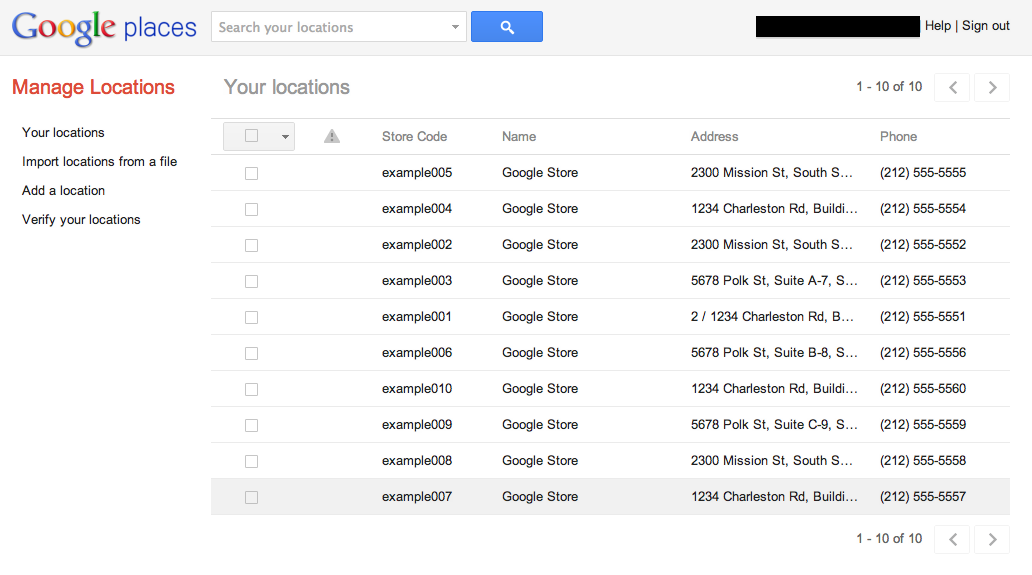
Manage multiple locations more easily with a new tool for Google Places

Businesses with multiple locations have a big task in front of them when trying to manage their online presence. How can they connect their customers with the locations closest to them? How can they make data changes to a group of their locations all at once? The challenges of managing multiple businesses in the real world can sometimes carry over online.

We’ve heard plenty of feedback about how you want to manage your listings on Google, which is why we’re excited today to announce an upgraded bulk listing management tool for Google Places for business.

We’ve made many improvements and now enable the following actions:
  • Edit one or more of your listings’ data at once
  • Search through your listings, filtering by specific information or for listings with errors
  • Upload new listings using a data file or by adding them individually within the interface
  • Tell us how we can improve this new interface by clicking the “Give Feedback” link
Before you get started with the new bulk management tool, watch the video tutorial that’s relevant to you or visit our Help Center for more information:   


New user? Learn how to manage multiple locations.


Already managing verified listings? Here's what's new.

Starting today, you’ll be routed to the new interface whenever you click to upload or edit a data file via the Places dashboard, or by visiting https://places.google.com/manage directly. You’ll still use the Places dashboard to see your listing analytics and to perform PIN verification on single locations. Remember that your updates will still take a few days to appear on Google Maps.

We hope the new tool makes managing your business on Google Places much easier. We look forward to hearing your feedback and seeing your listings up on Google Maps!

Posted by Derek Wetzel, Consumer Experience Specialist, Google Places

GoMo: Mark your calendar to ‘Hangout on Air’ and learn how to build a mobile site in minutes

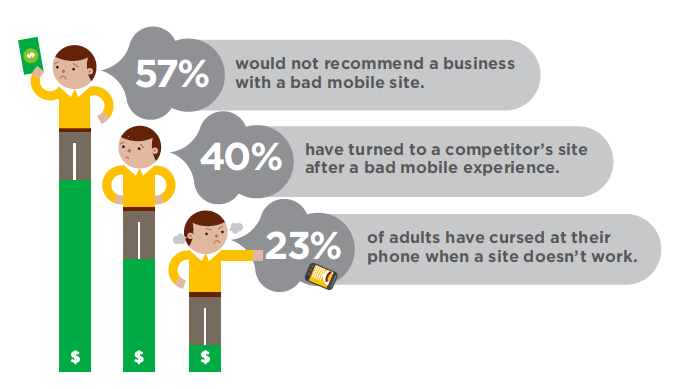
Did you know that 40% of mobile web users reported that they’ve turned to a competitor’s site after a bad mobile experience1? With about half of all Americans now owning a smartphone2, it’s time for businesses to meet user expectations by delivering a mobile experience as good as the desktop experience. In short, it’s time to step up to the plate and build a site optimized for the mobile web.              
                          

Google can help. We recently teamed up with DudaMobile to release a free mobile site builder.  In three easy steps you’re able to get started with mobile: (1) enter your site’s URL, (2) customize your site and (3) redirect mobile users automatically to the new mobile-friendly version.  It’s free and takes just a few minutes to complete!

Join us on Thursday, May 10th at 1pm EST/10am PST and watch as Google showcases how two businesses, Top Mast Resort in Massachusetts and Sava’s Restaurant in Michigan, go mobile and build mobile-friendly sites--live on air.

You’ll see how Top Mast is preparing to take advantage of mobile travel purchase intent - which is five times higher than online travel purchase intent, according to InsightExpress.  You’ll also see Sava’s move ahead of 95% of restaurants that do not have mobile-friendly sites, according to a study by Restaurant Science.

Finally, you’ll hear from the CMO of Dudamobile, Dennis Mink; he’ll talk about best practices when using the mobile site builder and walk through important questions to ask yourself when building a mobile-friendly site.

Details on how to tune in:
  • Sign into Google+ on Thursday, May 10 at 1 p.m. EST/10 a.m. PST
  • Go to the Think with Google Google+ page
  • Look for the stream post and click to enter the live stream  
Be sure to set a reminder in your calendar! If you have questions before or during the Hangout, post them with the hashtag #GoMoSite as a comment on the Google+ page.

Posted by Suzanne Mumford, Google Mobile Ads Marketing

Source: (1) Gomez 2011 (2) Nielsen February 2012

Monday, May 7, 2012

Google+ stories: Meet Best Made Company (again)

Editor’s Note: This is the final installment in a series of posts about small businesses on Google+ and their tips and tricks for managing a great page. Visit our YouTube channel to see all the videos in this series and join the discussion on the Google+ Your Business page. Thanks for following along!

Millions of businesses are now using Google+ to better connect with their customers. Since the launch of Google+ pages last November, we’ve watched as page owners hosted Hangouts with clients, announced news and deals in the Stream, and shared exclusive photos and videos. We’ve loved all the creativity out there and hope that this series has given you a few new tips for engaging with your customers on Google.

Over the last several months, we introduced you to some cool small businesses who had recently joined Google+, both here on the SMB Blog and on the Google+ Your Business page. The first company we introduced back in February was Best Made Company, a group of outdoor enthusiasts that specializes in designing and handcrafting wilderness supplies. We wanted to take one more look at their story as a final farewell to this series. Watch on as they create a magic moment for a very special pair of customers.


Want to learn more? Visit the Google+ Your Business site. And remember to visit all of our special guests in this small business series below at their +Pages and say hello!
Thanks for being a part of the journey, and be sure to share your own on the Google+ Your Business page.

Posted by Evelyn Lee, Google+ Pages Associate Product Marketing Manager

Big Moments...

We have had a lot of "Big Moments" going on around here lately. Two weeks ago, I ran in my first 1/2 marathon...It was the most excruciating experience I have ever encountered. The hills and the heat were absolute torture, but I survived (barely) and have the medal to prove it:o)
These were the girls I ran with. Had it not been for my great friend Shannon(far left), I wouldn't have made it to the end. She is such a great source of encouragement and an awesome friend!!

Another big moment was my little sister graduated from college. She is the first in our family to graduate from a university. She graduated with a double major on Saturday & we couldn't be more proud of her. Especially since she was the first. My parents didn't go to college & I only went to junior college and then cosmetology school. My brother will be graduating in two years, so we are really looking forward to that!! 
The weather was wild that morning..it started out raining...and then the sun came out. Along with the sun came high humidity, high heat, and biting bugs:o) We're still scratching;o)
Here are a few candid shots of the big day...
I love this shot of my parents:o)

 The kids posing with their aunt...S.R. was freezing, so she wore my sweater.
 Here is my sister receiving her diploma.


 This is the cake I made for her. This poor thing traveled many miles to make it to it's final destination. It was two days old by the time we were able to eat it, but it was still delicious..if I do say so myself;o)
We have been so blessed with all of the big events happening here lately. 
Next week I will be completely redecorating a dear friend's house. I can't wait to share before and after pictures with you all! I am really looking forward to it!!
Have a great day!!

Friday, May 4, 2012

Help Desk Hangouts: Display Network Advertising with Google AdWords

Editor’s note: Each week on the Google+ Your Business page, we’re putting you in touch with Googlers and users who can help you as a business owner get the most out of our products and features.

In our latest Help Desk Hangout On Air, we discussed advertising on the Google Display Network with Googlers Dori Storbeck, Courtney Pannell, Joanna Kim, Neil Mendelowitz, and two Top Contributors from the AdWords Community — Kim Clinkunbroomer and Theresa Zook. The group shared tips and tricks for the Display Network, and the TCs shared some of their personal experiences. If you missed it, you can watch the full hour-long Hangout on the Google Business YouTube channel (check out the video description for a minute-by-minute breakdown):


Here are a few of the questions you asked us to answer during the Hangout:

Can independent consultants take advantage of the Display Network? 
Yes, anyone can utilize the Display Network for advertising their products and services; however, whether it is right for you may depend on your specific business and your advertising goals.

Where is the Display Network available?
The Display Network is available in all countries that AdWords serves.

Which clicks are more likely to become conversions search or display?
Search and display perform very differently, depending on your overall campaign goals.

What’s more effective: automatic placements or manual?
If you’re trying to reach a specific audience or target users who demonstrate a particular interest and you have an idea of some Display Network websites where you want your ads to appear, managed placements are probably the best bet for you. If you’re just starting out with Display, we would suggest opting into automatic placements at first and then reviewing the domains you show on to further refine and optimize.

If in your industry search approximate cpc is = to display approximate cpc why would you do display?(Besides the obvious increase in potential traffic.)
The Display Network is a great way to find customers that may not be actively searching for your product. Other than potentially increasing traffic to your website, you can potentially grow your customer base and get more conversions.

Tips on how to get JPEG ads approved quickly?
Our ad review turn around time is usually 1-3 business days. If your ads are under review for more than 3 business days, please get in touch with us or submit your ads directly to our review team.

For remarketing, how do I set the ad up to show people the products they viewed but not purchased?
You can create different audience lists so that you create an audience for users who visited your product pages and users who completed a purchase. You can then create a “custom combination” list to subtract those who purchased from those who visited your pages and did not purchase.

What is the difference between topics and interest categories? How are these compiled?
Topic targeting allows you to place ads on pages directly related to the topic you've selected, whereas interest categories allow you to reach users across the Display Network who have shown specific interests, regardless of the page they're currently on.

For remarketing, would you suggest using just one method per ad group, i.e., contextual, topic, interest, managed placements, or is it OK to mix them?
Remarketing operates by showing your ads to users on your audience list, so within your ad group, the audience list should be the only targeting you have set up.

If you could only choose between search and display and the approximate cpc was the same. Which would you chose and why?
This question really depends on your business and your advertising goals. In general, we tend to see advertisers looking for more direct response focus on the Search Network, while those who are interested in branding and remarketing might want to focus on the Display Network.

Of course, if you’re interested in both, we’d recommend creating a specific campaign to target each network individually.

Any suggestions on frequency capping numbers?
When you turn on frequency capping for a campaign, you can set a limit for the number of impressions you allow an individual user to have per day, per week, or per month, and you can choose whether this is applicable to each ad, ad group, or campaign. So ultimately, the frequency capping number you select depends on your goals and the size of your advertising endeavor. Kim and Theresa suggested numbers around 5-15 impressions per day for an individual user.

I know there is a placement tool in AdWords - however it doesn’t seem to show "all" of the websites available in the network. I have found sites displaying relevant ads, but I did not find it in tool. Is there another way to identify these potential sites?
Yes! In addition to our Placement Tool, you can check the DoubleClick Ad Planner for other sites that are in the Display Network.

To learn more about how to get started with the Display Network, visit our Help Center or check out the AdWords Community forum. And remember to tune in to the live stream of our next Hangout at 11 a.m. PT Wednesday May 9 — topic to be announced on the Google+ Your Business page early next week!

Posted by Dori Storbeck and Courtney Pannell, Global Online Advertising Associates

Wednesday, May 2, 2012

Google+ page stories: CoffeeCakeKC

Editor’s Note: This is the seventh in a series of posts about small businesses on Google+ and their tips and tricks for managing a great page. Visit our YouTube channel to see all the videos in this series and join the discussion on the Google+ Your Business page.

Meet CoffeeCakeKC, one part decadent food truck (serving cupcakes, muffins, biscotti, and coffee cake) and one part delicious coffee. Their Big Orange Truck makes daily stops through downtown Kansas City. Brian Jurgens, or “Stubbie,” is an extreme hobbyist who started CoffeeCakeKC out of his love for the true flavor of coffee. Watch as he and his wife Melanie use Google+ to bring their followers along for the ride:


Looking to grow your followers on Google? Here are a few steps to get you started:

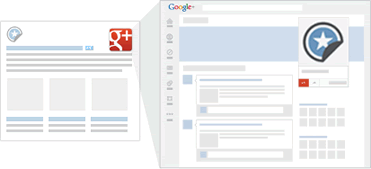
  • Like CoffeeCakeKC, add the Google+ badge to your site and connect it to your Google+ page. This badge lets people +1, see personal annotations, and follow your page directly from your site. Or, just install the Google+ icon. Whenever someone who visits your site clicks the icon, they will be taken to your Google+ page where they can follow your page and see your posts from then on.
Use Google+ badges on your website to direct customers to your Google+ page for the latest news.
  • Use Google+ badges on your website to direct customers to your Google+ page for the latest news.
  • People often turn to friends and family for help making decisions. The +1 button combines the power of these personal recommendations with the reach of Google, making it easy to start conversations and offer timely recommendations to your social circles across the web.
  • Connect your +1’s. Help people see their friends’ recommendations, wherever they find you on the web by connecting +1's for your website with +1's on your Google+ page and ads. Once you’ve created your page, you need to put a snippet of code on your site, and advertisers just need to enable Social Extensions in AdWords.
Connect the +1s for your website to your Google+ page and ads. This will help spread recommendations by your followers to their friends.
  • Connect the +1s for your website to your Google+ page and ads. This will help spread recommendations by your followers to their friends.
  • Learn more. Find additional tips and tricks for promoting your page at the Google+ Your Business site.

How are you growing your page’s community? Join the discussion on the Google+ Your Business page and tag your posts #mybusinessstory.

Posted by Evelyn Lee, Google+ Pages Associate Product Marketing Manager